
Deposits and Installment Collection
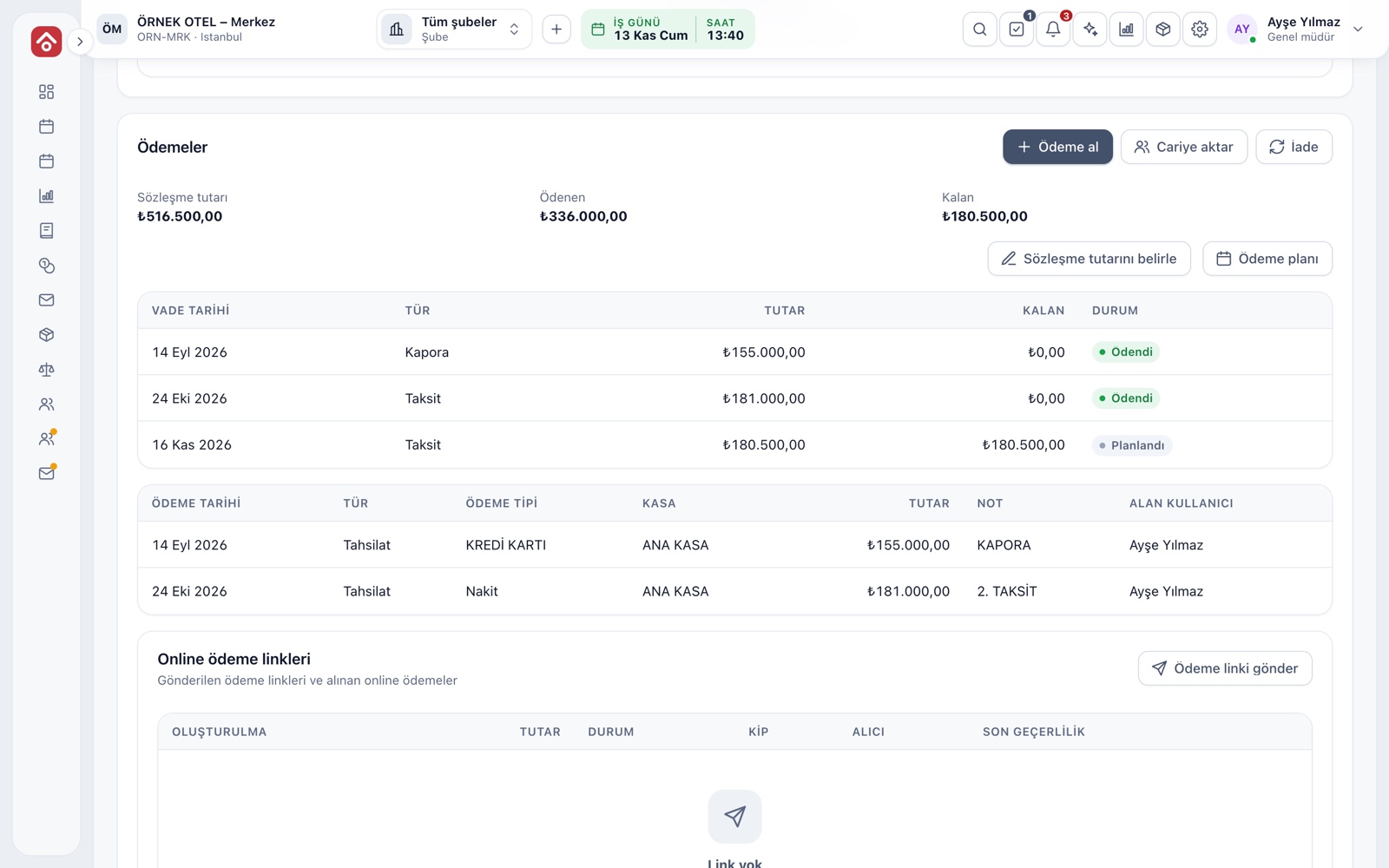
Deposit, installments and balance are tracked on the same booking card: the payment plan is set, collections are recorded, receipts are printed and the remainder is always visible. No payment record can be changed quietly.
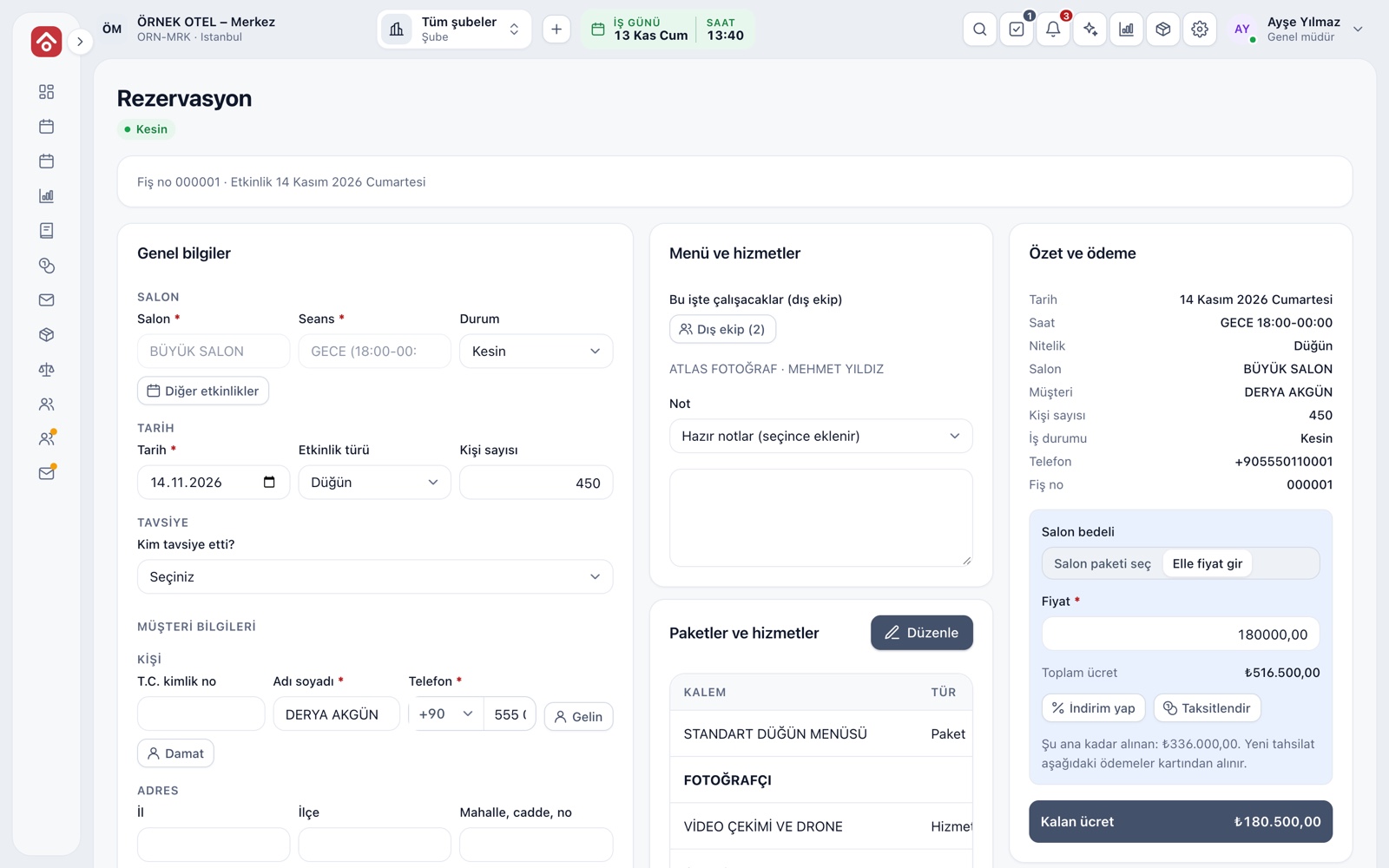
Payments on the booking card
The right panel of a confirmed booking always shows the total fee, the amount received so far and the remainder. The total is calculated from the venue fee, package and product lines, and discounts, so sales and accounting look at the same figure.
- Contract amount, paid and remaining sit side by side
- Discounts are by amount or percentage, with the reason recorded
- No payment is taken on a quote or option; collection opens once confirmed
Deposit and installment plan
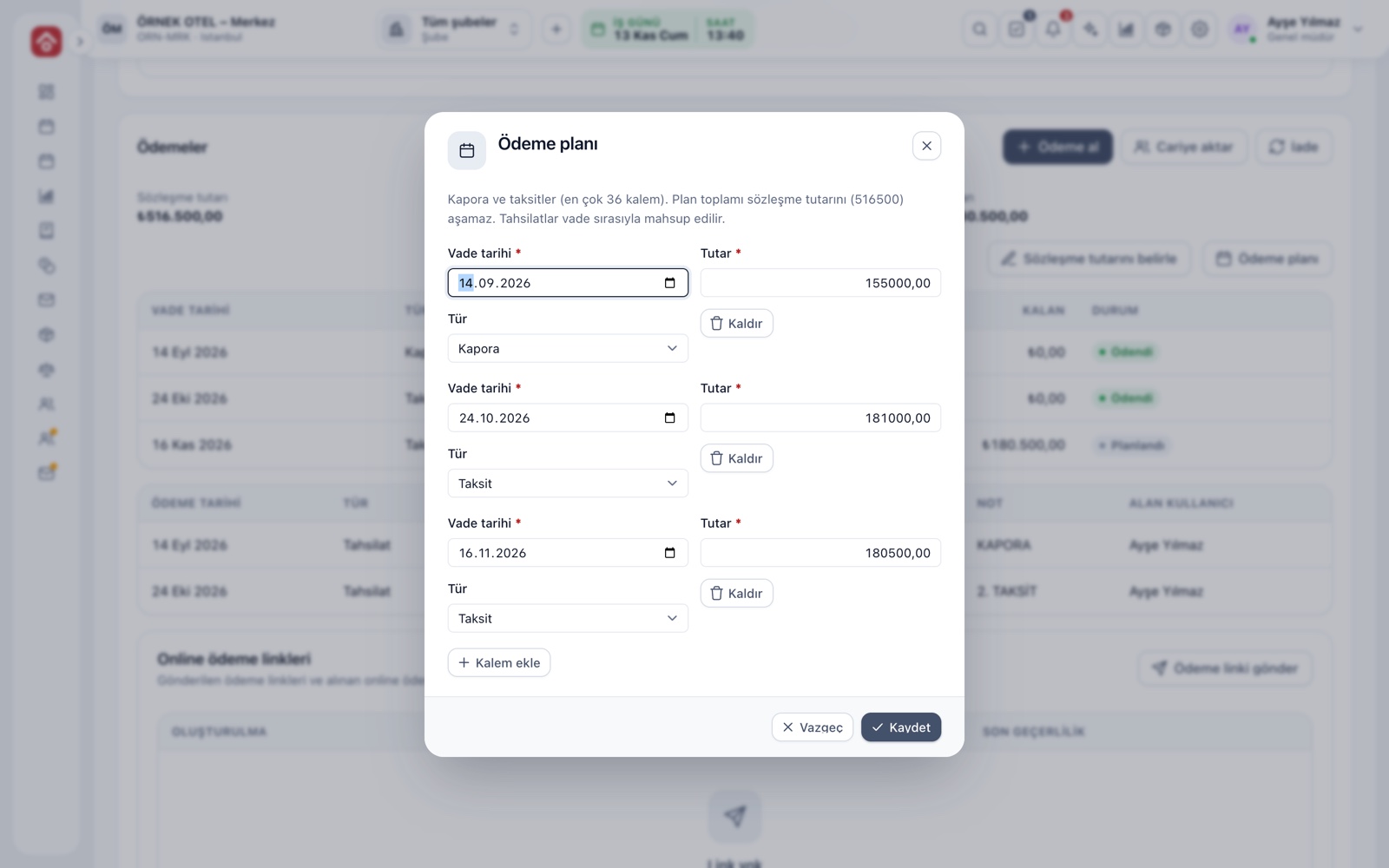
The payment plan is a list where each line has a due date, an amount and a type (deposit or installment). The plan total cannot exceed the contract amount. When the plan changes, old lines are not deleted but kept as void, so nothing is lost.
- Deposit and installments sit in one list in due-date order
- Each line carries a status badge: paid, partly paid, overdue
- Only a user with plan permission can change it
Installment wizard
The Split into installments button asks in how many installments and on which day of the month the fee is paid, and builds the plan for you. Amounts and dates can then be edited line by line. The window shows total, received and remaining together.
- Pick the number of installments and the payment day
- After setup, lines can be added, edited or removed
- Enter the total fee first; no plan is built without a price
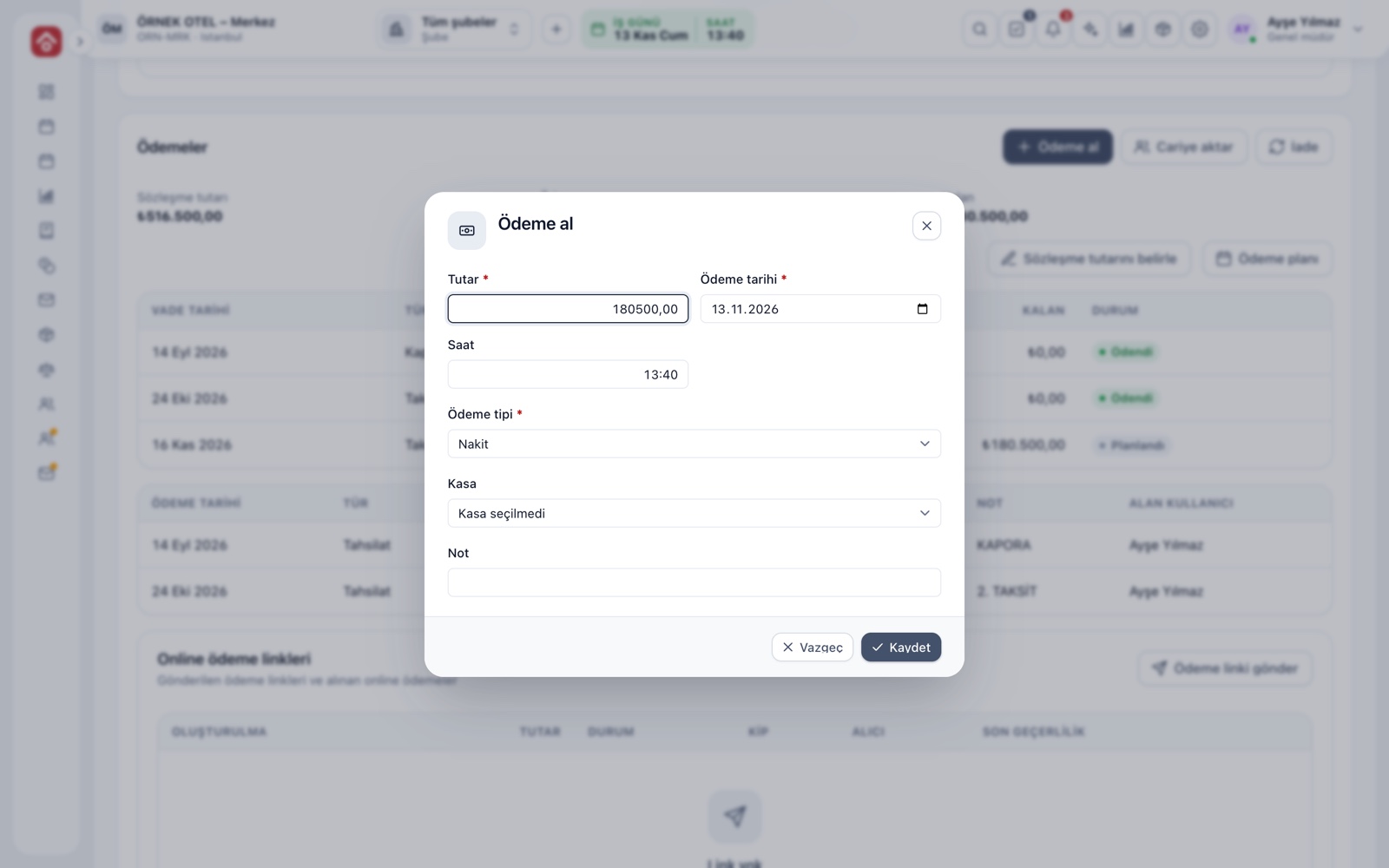
Taking a payment
The Take payment window asks for amount, date, time, payment type, cash register and a note. The Collect button on the calendar helps you find the job first: type a name, phone, bride or groom name or receipt number and confirmed bookings are listed with their remainder.
- The amount cannot exceed the remaining balance
- The payment date cannot be in the future
- Payment types: cash, card, bank transfer, cheque
- Choosing a register is optional
Oldest-first allocation, receipts and corrections
When a customer pays before an installment date, you do not choose which line it closes; the amount is applied from the oldest due date. Payment records are append-only: a wrong amount is corrected with a refund entry, and both lines show who made them.
- Save and print opens a simple receipt carrying the booking number
- A refund cannot exceed what was received and needs its own permission
- An uncollectible balance moves to an account as a debit
How deposits are handled in accounting
weddyus treats a deposit as an order advance, not income. After the event, once the number of days you set in settings has passed, the service fee is posted to income and VAT, the final invoice drops into the To-be-invoiced list and deposits are offset. Confirm invoice timing with your accountant.
- Prices are entered VAT-inclusive; the rate comes from the item's tax class
- Link a venue to a department and its collections and refunds post there
- With the accounting module on, entries are created automatically
Cancellation and cancellation fee
The cancellation tiers in the contract come into play when a booking is cancelled. The system works out how many days before the event it is cancelled, and shows the suggested fee and the maximum refundable amount; an authorized user confirms or changes them. Settle the tax treatment of the fee with your accountant.
- Tiers are defined in the contract template
- A cancellation reason is required; the record stays and the venue is freed
- Refund and fee are separate lines in the payment ledger
Online payment link and customer message
With the payment provider add-on active, a payment link can be sent to the customer from the booking. The customer pays on the provider's secure page, and the collection posts to the deposit record automatically. An SMS can also go out when a payment is received or becomes late.
- A payment made by link shows as a separate method
- The link can be re-sent by email or cancelled
- The message text is editable from a template
Modules used together
Receivables and Overdue Tracking
Outstanding balances, overdue payments and alerts
Learn moreQuotes and Contracts
Same-day quote, PDF from template, digital approval
Learn moreSMS and Notifications
Automatic customer messages for bookings and payments
Learn moreIncome and Expense Records
Record venue income and expenses
Learn moreVenue Calendar and Booking
Day/night calendar, option periods, conflict warnings
Learn moreFrequently Asked Questions
Do I need to issue an invoice for a deposit?
weddyus tracks a deposit as an advance without an invoice; the final invoice drops into the To-be-invoiced list after the event. Check invoice timing and VAT with your accountant.
Can I delete a payment I entered wrongly?
No, payment records are append-only. A refund entry corrects it, so what was fixed and when stays visible.
Can I take a deposit from a customer on option?
Payments are taken only on confirmed bookings. When the customer pays a deposit, you convert the booking to confirmed.
Does the customer get an installment reminder?
An automatic SMS can go out when a payment is received and when a due date passes. You can follow payments that fall due soon in the Expected list on the home screen.
Can I use weddyus without a hotel or POS?
Yes. weddyus works on its own; shared modules such as accounting, stock and invoicing open from the same menu if you want them.
Meet Deposits and Installment Collection
Let us call you for a live walkthrough, or try it free for 1 month.