
Venue Reports
Venue occupancy, income, collection aging, conversion from inquiry to contract and crew workload on one report page. Every report downloads as Excel, CSV or PDF.
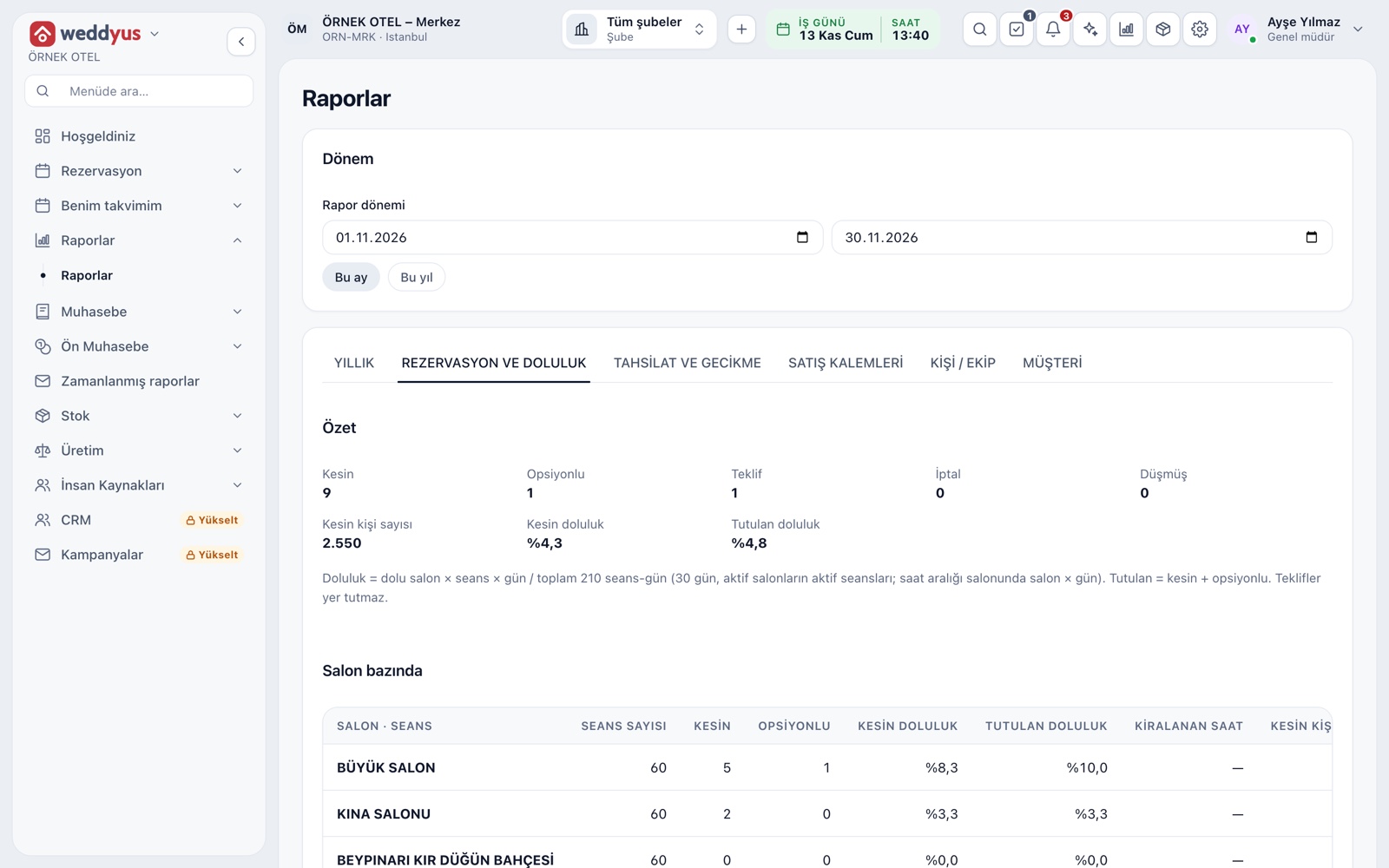
One page, six tabs: bookings and occupancy
The Reports page has six tabs: Yearly, Bookings and occupancy, Collections and overdue, Sales items, People / Crew and Customers. The occupancy tab counts how many bookings sit in each status in the chosen period and gives each venue's sessions, jobs and guests.
- Occupancy is taken venue × session × day divided by all session-days
- Held occupancy counts confirmed and optioned bookings together
- Type and month breakdowns show where the season weakens
Yearly report
The yearly tab opens with year buttons or a custom period and counts confirmed jobs only. The overview gives job count, collected, pending collection and total fee in a monthly table. A grid crossing the month booked with the event month shows how far ahead bookings arrive.
- Guest count compares this year with last year
- Monthly income shows collected and remaining amounts as bars
- Event type breakdown shows how many jobs each type brought
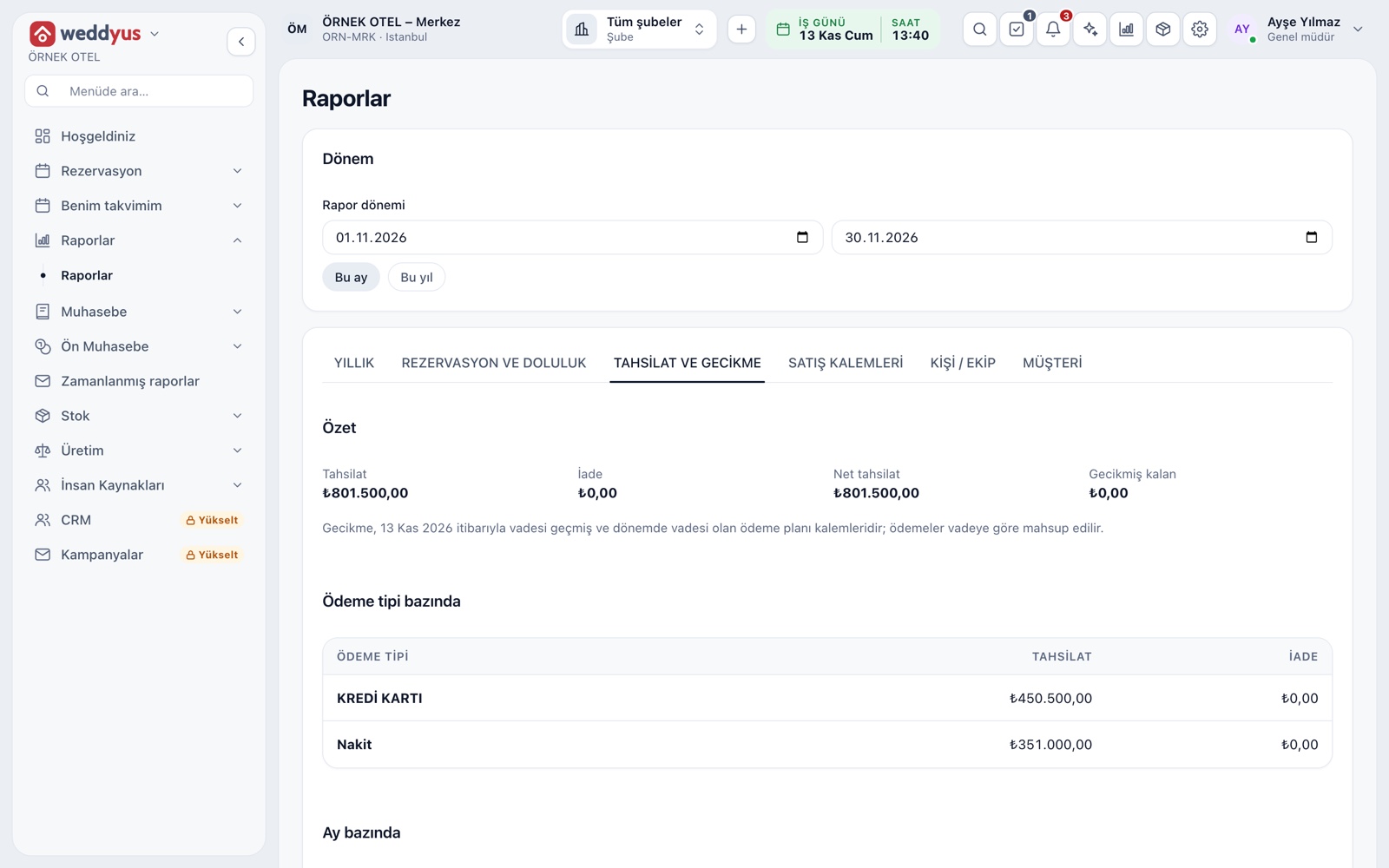
Collections and overdue aging
The Collections and overdue tab gives the period's collected, refunded and net collected, split by payment type and month. The overdue balance is grouped into four age bands: 1-30, 31-60, 61-90 and over 90 days. See Receivables and Overdue Tracking for detail.
- Deposit and installment lines are tracked in the same aging
- The overdue balance comes from the same calculation as the home-screen list
- Click an overdue row to open the booking
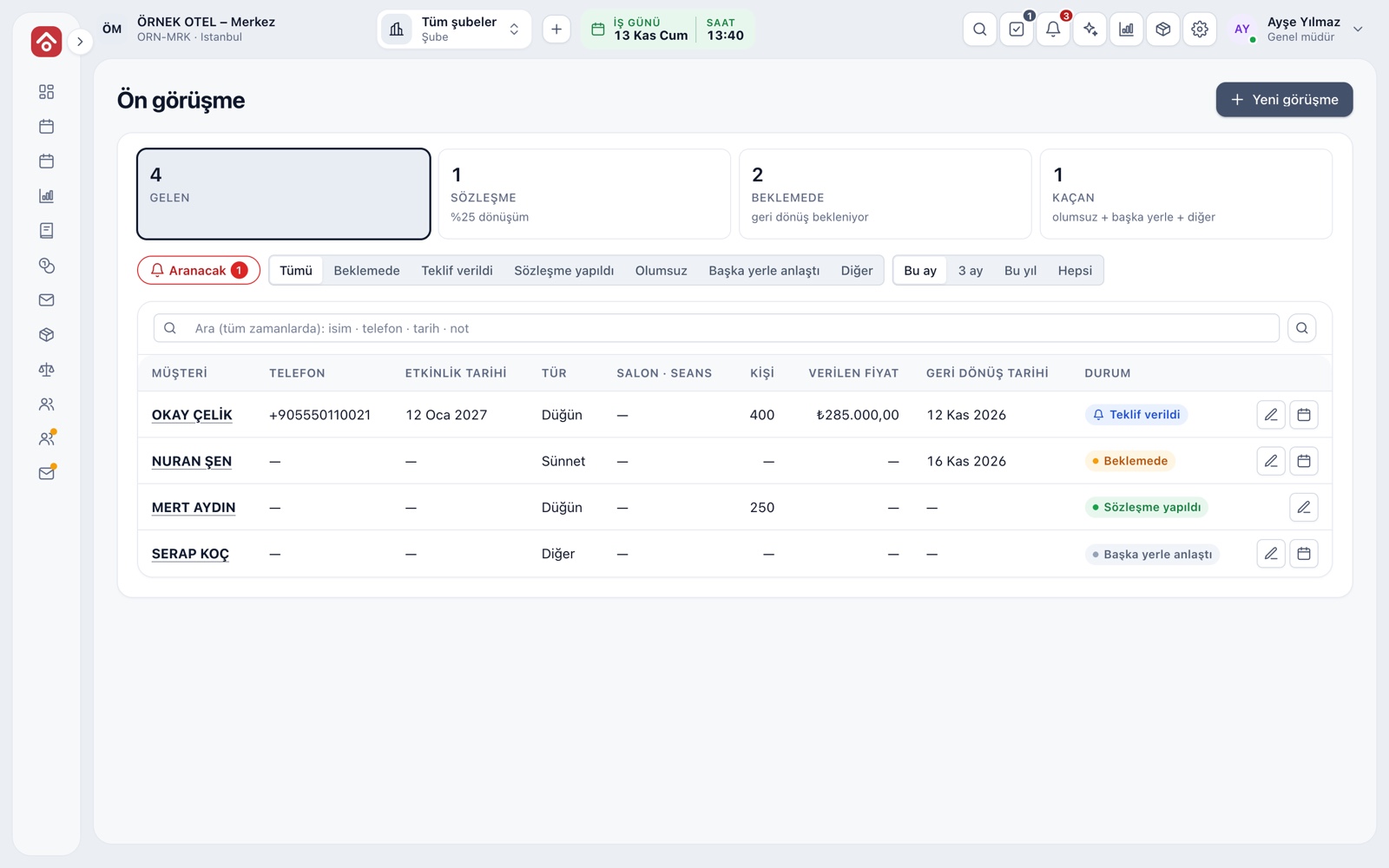
Conversion from inquiry to contract
The inquiry screen counts prospects: received, contract, pending and lost. The Contract card shows the conversion rate beside it, which is the share of received inquiries that reached a contract. Periods are this month, 3 months, this year or all.
- The call-back chip brings forward inquiries whose follow-up day has come
- The lost counter adds up declined and went-elsewhere inquiries
- Each row shows the quoted price and follow-up date
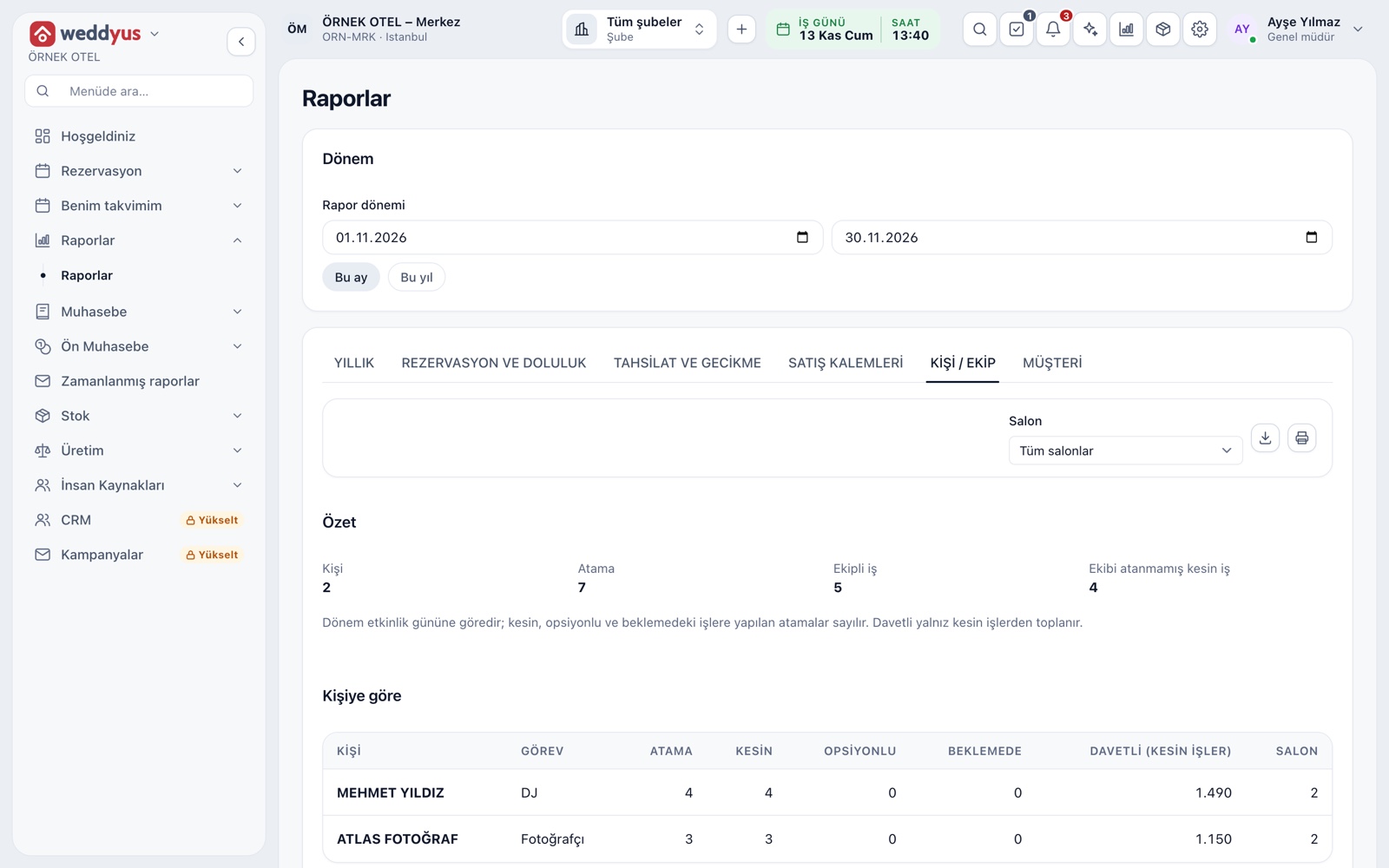
People / Crew and Customer reports
The People / Crew tab shows who worked how many jobs in the period and which confirmed jobs have no crew. The Customers tab gives each customer's job count, amount, collected, remaining and last event, searchable by name or phone.
- The crew report holds no pay; it counts assignments and workload
- Customer amounts are summed from confirmed jobs only
- Click a row to open the booking
Sales items and export
The Sales items tab gathers package, product and service items from the period's confirmed bookings, so you see how much of each menu was sold and purchasing plans can rely on it. Every report downloads and prints exactly as shown on screen.
- Each row has quantity, total amount and the number of bookings it appears in
- Reports are open only to users with report-view permission
- Journal, VAT and official filing reports come from the Accounting module
Modules used together
Receivables and Overdue Tracking
Outstanding balances, overdue payments and alerts
Learn moreLeads and Customers
Lead card, meeting notes and conversion to customer
Learn moreMulti-venue Management
Multiple venues and branches in one account
Learn moreEvent Operations
Staff, equipment and task lists
Learn moreIncome and Expense Records
Record venue income and expenses
Learn moreFrequently Asked Questions
How is occupancy calculated?
Venue × session × day taken, divided by all session-days. Held occupancy counts confirmed and optioned bookings together; quotes do not hold a venue, so they are left out.
Which records do the reports count?
As a rule, amounts and collections come from confirmed bookings only, and occupancy from confirmed and optioned ones. Each report states this at the top.
Where do I see the conversion rate?
On the Contract card of the inquiry screen. It shows, as a percentage, how many received inquiries in the chosen period reached a contract.
Who can see the reports?
Users with report-view permission. The crew role does not see these reports.
Can I export the reports?
Yes. Every report downloads as Excel, CSV or PDF and can be printed. A report period can be up to one year.
Meet Venue Reports
Let us call you for a live walkthrough, or try it free for 1 month.