
Event Operations
The crew and timing behind an event in one place: staff are assigned to a booking, each person sees only their own jobs, reminders go out, and the crew report shows missing assignments.
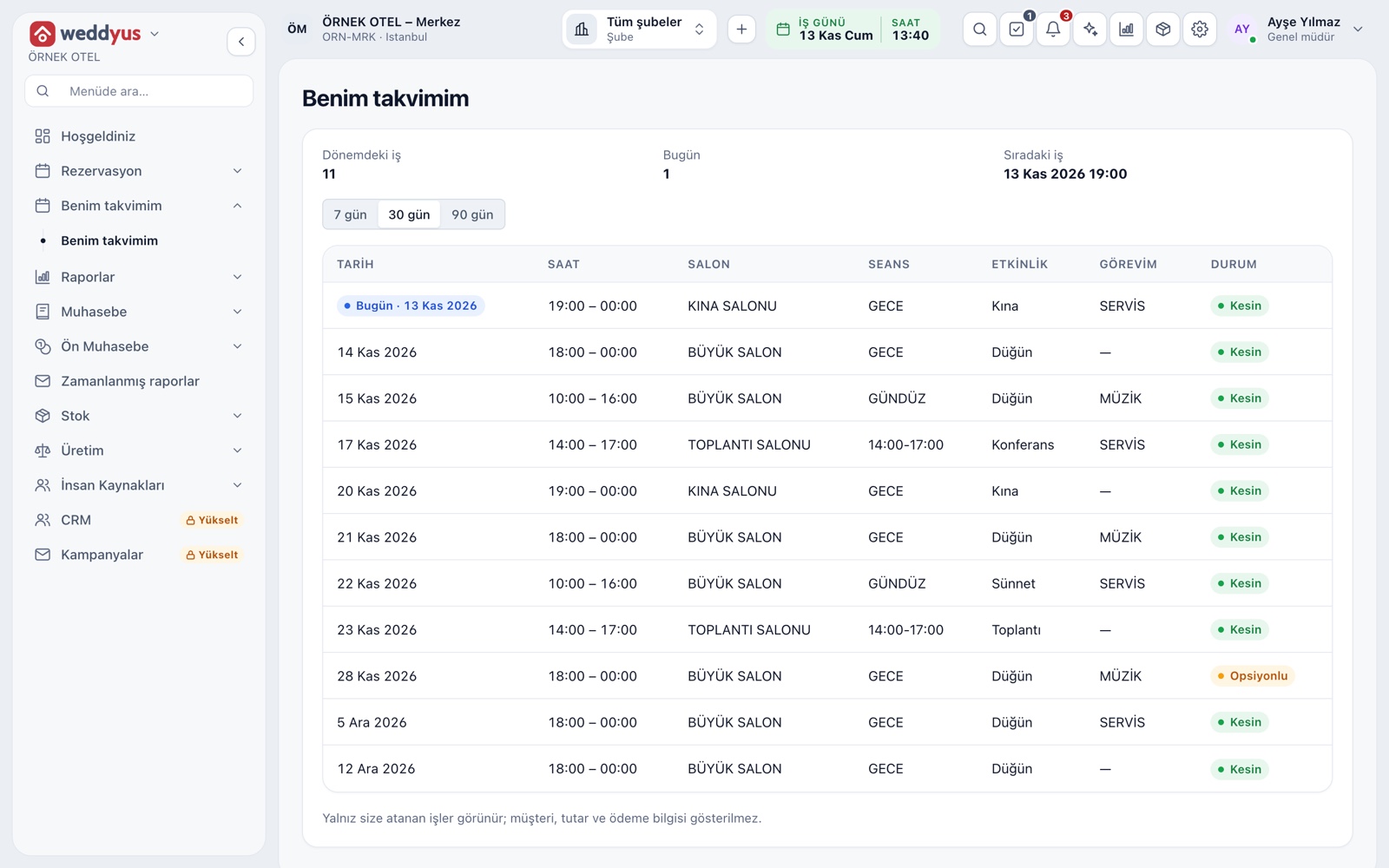
My Calendar: a personal view
An assigned person sees only their own jobs on the My Calendar screen. At the top are jobs in the period, today's jobs and the next job; a 7, 30 or 90-day period can be chosen. Customer, amount, payment and contract details never reach this screen.
- The table has date, time, venue, session, event, role and status
- A user with the crew role lands straight on this page after login
- The screen is read-only
Assigning crew to a booking
From the Working on this job field on the booking card, the Select outside crew button opens. It searches the staff list by name, and you pick one or several people. The assigned names show on the card, so nobody has to phone around to find out who is on duty.
- Several people can be assigned to the same job
- Assignments are saved to the booking and can be undone
- The contract's crew field prints assignees with roles and phones
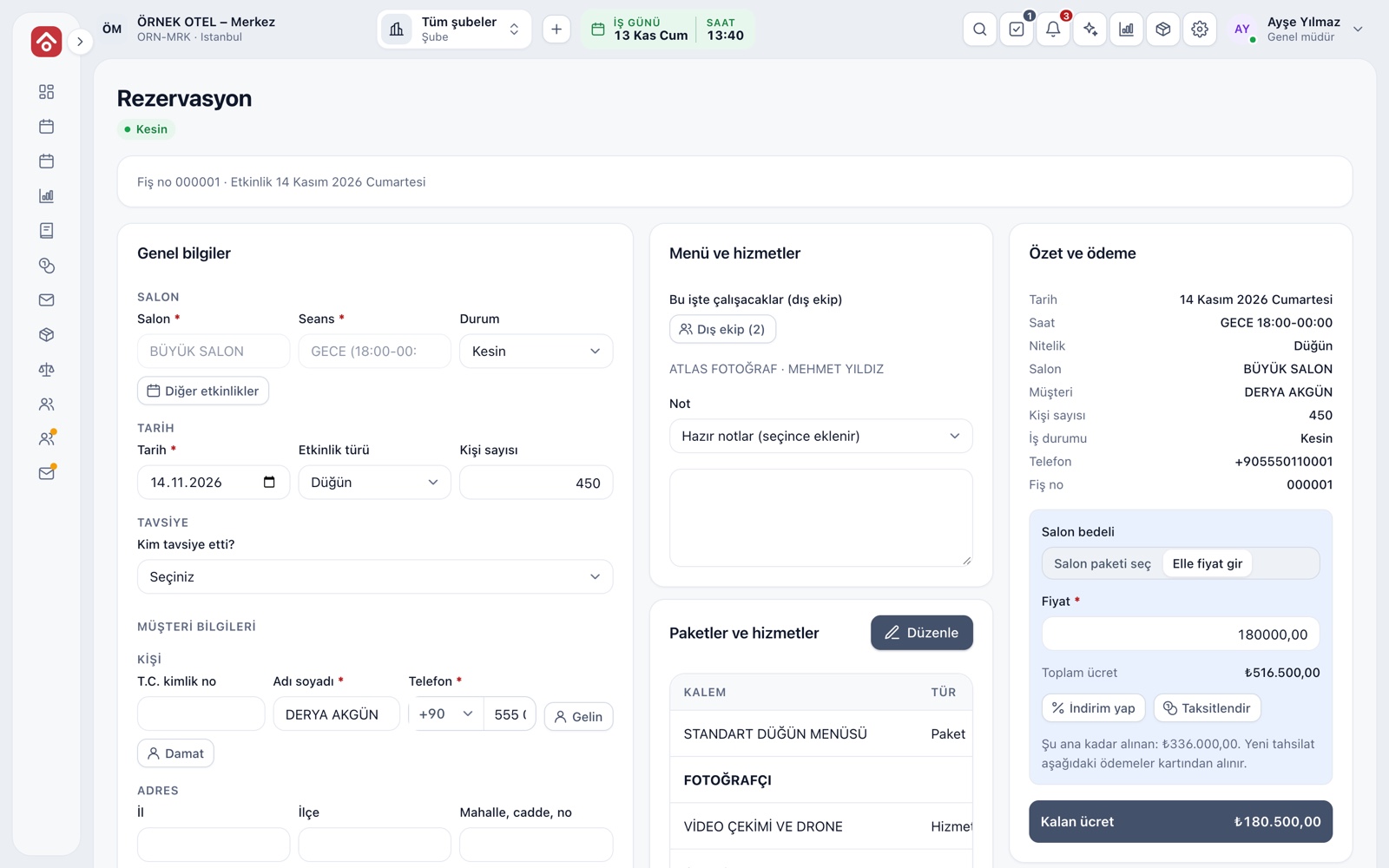
Roles and adding someone new
A person's role is set on their staff record: photographer, videographer, DJ, musician, serving team, valet, sound and lighting, decoration, organizer and so on. If someone from the outside crew is not on the list, add them from the same window; name, surname and role are enough, phone is optional.
- A new person is added without an account; no invite or SMS goes out
- If login is needed, the business owner grants it
- The record stays in the staff list for other jobs
Automatic reminders
An in-app reminder reaches the assigned person the day before the job and as the start time approaches. The first names tomorrow's venue and session, the second the start time. The coordinator does not have to call the crew one by one.
- Reminders arrive as in-app notifications
- They go only to people assigned to that job
People and crew report
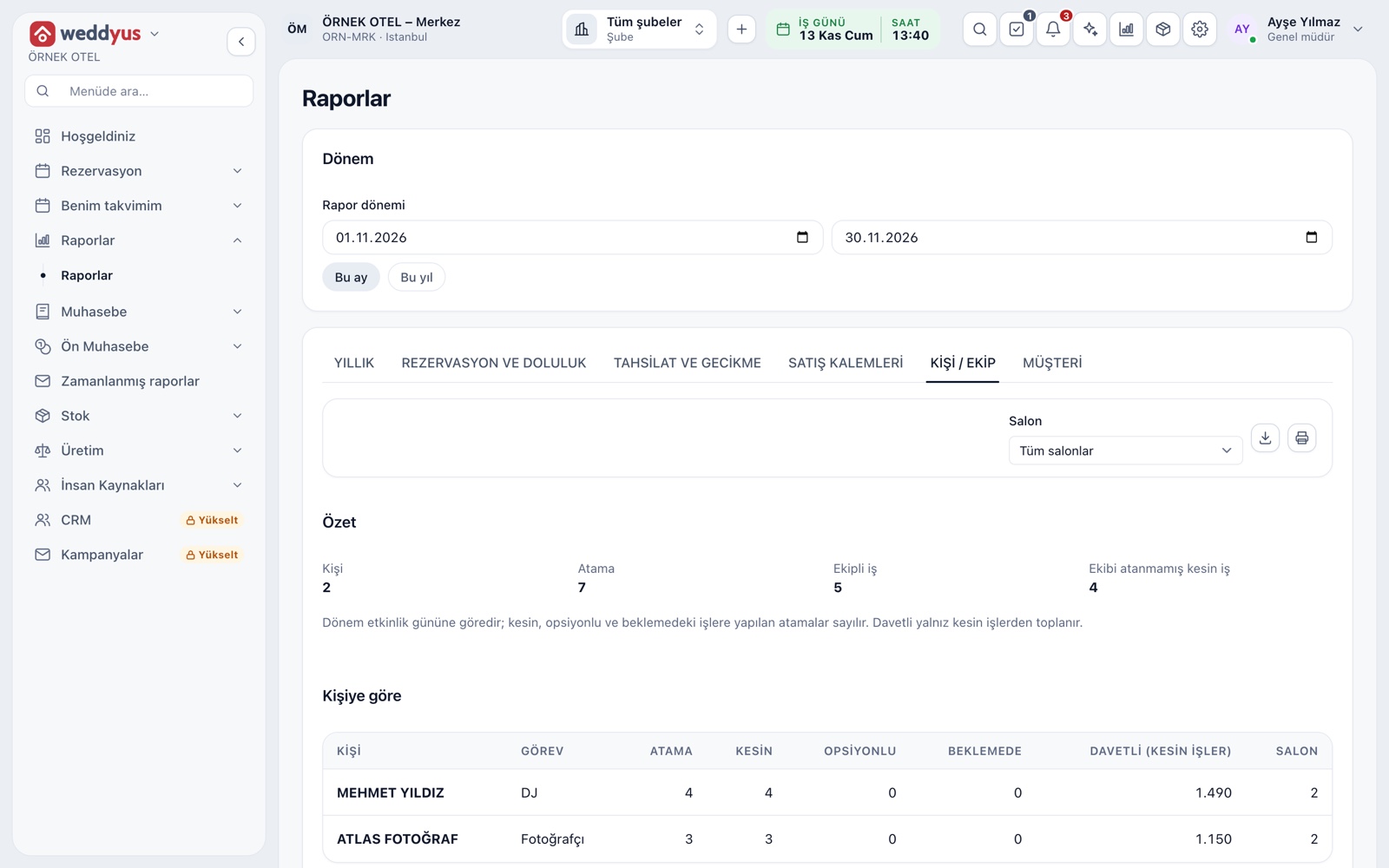
The People / Crew tab under Reports shows who worked how many jobs in the period, with a person-by-job breakdown below. The counter for confirmed jobs with no crew assigned makes a missing assignment visible as the event approaches.
- Summary counters: people, assignments, jobs with crew, confirmed jobs without crew
- A venue filter limits it to one venue's crew
- The report holds no pay; it counts assignments and workload
- Excel, CSV, PDF and print
Media upload for photographers and videographers
Outside crew such as photographers and videographers upload photos and videos to the media project of the booking they are assigned to. The coordinator manages projects and passes the delivery link to the customer. Outside crew never see the customer's name, phone or amounts.
- Outside crew upload only to their assigned job and delete only their own files
- A delivery link carries a download period
- The customer gallery shows no name or phone
Modules used together
Event Order (BEO)
Event order sheet: program, menu, layout and responsibilities
Learn moreEquipment and Extra Services
Sound, lighting, decoration and other add-on items
Learn moreEvent Management
Lead, option, confirmed, completed and cancelled statuses
Learn moreWedding Tracker
One file for every event
Learn moreVenue Reports
Occupancy, revenue, deposit aging, conversion rate and cancellation reasons
Learn moreFrequently Asked Questions
Does outside crew have to log in?
No. A person can be added to the staff list without an account and assigned to a booking. If login is given, the crew role sees only the jobs assigned to them.
Can an assigned person see customer details?
No. The My Calendar screen has only date, time, venue, session, event type, role and status.
Are reminders sent by SMS?
No, crew reminders are in-app notifications. SMS is for the booking and payment messages sent to customers.
Can I track crew pay on this screen?
No. The report counts assignments and workload. Salary, bonus and advance records live in the shared staff and accounting modules.
Meet Event Operations
Let us call you for a live walkthrough, or try it free for 1 month.